
- Why Do Bulk MT4/MT5 Changes Go Wrong?
- What controls does a Bulk MT4/MT5 Change Need?
- How Do You Run a Bulk MT4/MT5 Change Safely?
- Step 1. Define the Scope
- Step 2. Run a Dry-Run Validation
- Step 3. Submit for Approval
- Step 4. Apply the Batch
- Step 5. Verify the Result
- Step 6. Roll Back if Needed
- Step 7. Review the Log
- How Does TradeOps Control Center Handle Bulk Changes?
- How Do MT4/MT5 Plugin Vendors Handle Change Control?
- Common Mistakes With Bulk MT4/MT5 Changes
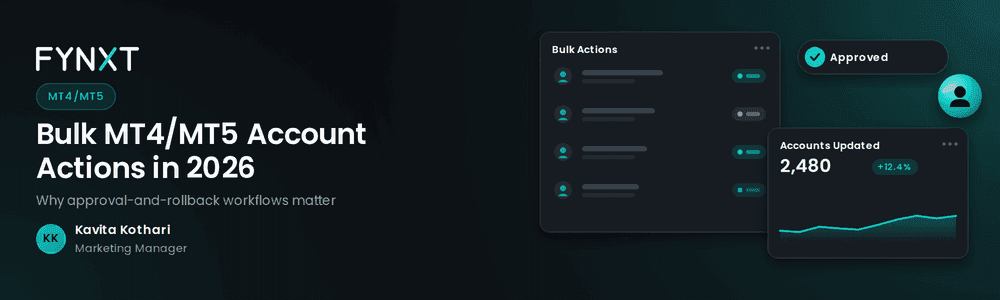
A safe bulk MT4/MT5 account action needs four controls: validation before apply, manager approval, rollback, and an audit trail. Skip one, and a single wrong group selection can reprice thousands of accounts with no clean way back. FYNXT TradeOps Control Center builds all four into every bulk action and cuts manual MT4/MT5 workload by up to 70%.
Short Answer
- The four controls. Validate, approve, keep a rollback, log every field.
- The workflow. Scope, dry run, approval, apply, verify, roll back if needed, review the log
- The test for any tool. Can it undo one batch on one server without touching anything else?
Why Do Bulk MT4/MT5 Changes Go Wrong?
Bulk changes go wrong for four boring reasons: the wrong group gets selected, the file holds stale values, nobody else checks it, and there is no undo. None of these is exotic. They happen at 6 a.m. before a data release, when one person on your dealing desk is working fast.
Three situations carry most of the risk.
- Leverage cut before an event. You drop leverage on a retail group ahead of an election or rate decision. Pick the wrong group, or miss one server, and part of your book stays at full leverage into the gap. Brokers learned this the hard way on January 15, 2015, when the Swiss National Bank removed the EUR/CHF floor and FXCM reported about $225 million in client debit balances.
- Weekly swap update. Your liquidity provider sends new rates and someone uploads last week’s file. Every overnight position is charged wrong, and you find out from client complaints.
- Holiday session change. You shorten sessions for a market holiday and forget to restore them. Monday opens with symbols closed.
The pattern is the same. The change itself is simple. The control around it is missing.
What controls does a Bulk MT4/MT5 Change Need?
Every bulk MT4/MT5 change needs four controls, and each one removes a specific risk. Use this table as your minimum standard.
| Control | Risk it removes | What to log |
|---|---|---|
| Validation before apply | Wrong group, missing symbol, value outside limits, duplicate rows | Validation result per row, rows rejected and why |
| Manager approval (maker-checker) | One person’s mistake reaching the live server | Who prepared it, who approved it, approval time |
| Rollback | No clean way back after a bad batch | Before-value of every field changed, batch ID |
| Audit trail | No evidence for compliance, disputes, or a regulator | Server, account or symbol, field, before and after value, user, timestamp |
This is not an ops preference. ISO/IEC 27001:2022, Annex A control 8.32, requires changes to information systems to follow change management procedures, and your auditor will ask for the evidence.
How Do You Run a Bulk MT4/MT5 Change Safely?
You run it as seven steps, each with an owner and an output. Skipping a step is how incidents start.
Step 1. Define the Scope
The maker (usually a dealing or back-office analyst) lists the servers, groups, and logins in scope and the exact field and value. Output: one scoped file, named with the date and purpose.
Step 2. Run a Dry-Run Validation
The tool checks that groups and symbols exist, values sit inside limits, and no row is duplicated. Fix every rejected row before anyone approves. A dry run that only reports errors after the change is not a dry run.
Step 3. Submit for Approval
A checker who did not prepare the batch, typically the head of dealing or risk, reviews scope and impact. Compliance joins when the change touches client terms, such as leverage or swap-free status.
Step 4. Apply the Batch
Apply to every in-scope server in the same run, so live and demo do not drift apart. Record the batch ID.
Step 5. Verify the Result
Spot-check a sample of accounts and symbols on each server against the file. Five minutes here saves a day of reconciliation later.
Step 6. Roll Back if Needed
If verification fails, revert the batch from its stored before-values. Do not patch it by hand on top of a bad state.
Step 7. Review the Log
Compliance or ops reviews the audit entry weekly. Our guide to Forex CRM audit trail features covers what regulators expect to see.
Worked example (illustrative numbers)
Your risk team wants leverage cut from 1:500 to 1:100 on a retail group of 2,400 accounts across 3 live servers before a central bank decision. The dry run shows 3 rows referencing a group renamed last month, so they are fixed before approval. The impact check also flags 37 accounts whose margin level would fall below 100% at the new leverage. The checker decides to notify those clients 24 hours earlier than the rest. The batch runs once across all 3 servers, a sample of 20 accounts is verified, and the log holds 2,400 before and after values. If the decision is postponed, one rollback restores 1:500.
| See a maker-checker leverage batch run across multiple servers. Book a Demo and bring your own scenario. |
How Does TradeOps Control Center Handle Bulk Changes?
TradeOps Control Center runs every bulk action through the same four controls: validation, maker-checker approval, rollback, and a full audit trail, with role-based access on top.
- Accounts and groups. Update leverage, group, and other parameters for unlimited accounts by CSV, with pre-flight checks on data integrity, group existence, and parameter limits.
- Swaps. Update long and short swaps across 600+ symbols per batch, on live, demo, or contest servers, with rollback if errors appear.
- Sessions and holidays. Holiday Scheduler applies closures across servers and reverts automatically when the holiday ends, saving 80% of manual setup time.
- Trades. Trade Closer previews a bulk close before it runs and supports atomic rollback.
- Access. User Access Manager assigns permission levels by brand, team, or department.
Every module records before and after values, user attribution, and timestamps. For the cost of doing this by hand, see our comparison of manual vs automated MT4/MT5 admin, and for the downstream check, our MT4/MT5 reconciliation guide.
How Do MT4/MT5 Plugin Vendors Handle Change Control?
Most plugin vendors document what a plugin changes, not how the change is governed. Here is what two of the most-cited vendors publish, based on their own pages in October 2026.
Brokeree Solutions is strong if you want rule-based risk plugins such as Dynamic Margin and Leverage or Swap Manager. Its Plugin Configurator checks inputs before they apply, keeps a version history, lets administrators roll back to a previous version, and supports restricted admin accounts. Its public pages do not describe a formal maker-checker approval gate or pushing one change to several servers at once.
Pluxium suits brokers who want individual plugins licensed per server, with nine on offer. Its admin GUI includes live validation, and CSV bulk edits keep rules “auditable and version-controllable.” Approval workflows and rollback are not described on its public pages.
Ask every vendor, including us, to show the approval gate and a one-batch rollback live.
Common Mistakes With Bulk MT4/MT5 Changes
- Letting the maker approve their own batch. That is a signature, not a check.
- Changing servers one at a time. Live and demo drift, and nobody notices until a client does.
- Keeping the log in a spreadsheet. If it can be edited, it is not an audit trail.
Frequently Asked Questions
You roll back by restoring the before-values captured when the batch was applied, for exactly the accounts, groups, or symbols it touched. That only works if the tool stored those values per field. FYNXT TradeOps Control Center logs every modified field and supports rollback, so a wrong leverage or swap batch can be reverted without rebuilding it by hand.